
diff options
| author | Christian Cleberg <[email protected]> | 2024-07-28 19:46:20 -0500 |
|---|---|---|
| committer | Christian Cleberg <[email protected]> | 2024-07-28 19:46:20 -0500 |
| commit | 5d4a1199b51602f64985982c82de9b7c537583c6 (patch) | |
| tree | 7ac50f99425c5524c0820360754045b80d1bafcc /content/blog/2024-04-18-mu4e.md | |
| parent | e86c55dbfad35870e76bd0e69991416f60017512 (diff) | |
| download | cleberg.net-5d4a1199b51602f64985982c82de9b7c537583c6.tar.gz cleberg.net-5d4a1199b51602f64985982c82de9b7c537583c6.tar.bz2 cleberg.net-5d4a1199b51602f64985982c82de9b7c537583c6.zip | |
conversion from Zola to Weblorg
Diffstat (limited to 'content/blog/2024-04-18-mu4e.md')
| -rw-r--r-- | content/blog/2024-04-18-mu4e.md | 305 |
1 files changed, 0 insertions, 305 deletions
diff --git a/content/blog/2024-04-18-mu4e.md b/content/blog/2024-04-18-mu4e.md deleted file mode 100644 index 960e7e3..0000000 --- a/content/blog/2024-04-18-mu4e.md +++ /dev/null @@ -1,305 +0,0 @@ -+++ -date = 2024-04-18 -title = "Email in Doom Emacs with Mu4e on macOS" -description = "" -draft = false -+++ - -This post was heavily inspired by [Email setup in Emacs with Mu4e on -macOS](https://macowners.club/posts/email-emacs-mu4e-macos/), but with my own -tweaks for a single-account configuration and some Doom-specific configurations. - -# Overview - -[Mu4e](https://github.com/emacsmirror/mu4e) is an Emacs-based email client based -on [mu](https://www.djcbsoftware.nl/code/mu/), an indexer that stores email in -the Maildir format. - -This blog post covers the installation of Mu4e in Doom Emacs on macOS. This -guide should be very similar to GNU Emacs and Linux-based systems, with a few -tweaks required in the various configuration files. - -# Installation - -## Prerequisites - -### Create the Folder Structure - -Start by creating the base folder structure: - -```sh -mkdir ~/.maildir -mkdir ~/.maildir/example # use whatever name you want to call your email account -mkdir ~/.maildir/certificates # used to store system root certificates -``` - -### Store Email Account Passwords in macOS Keychain - -Next, I will be using the macOS Keychain to store my email account passwords -using the command below. - -```sh -security add-generic-password -s mu4e-example -a [email protected] -w -``` - -This will prompt you to input your password twice to confirm. Keep the -`mu4e-example` name in mind, as you will need to reference it later in the IMAP -and SMTP configuration files. - -### Store Root Certificates - -In order to use IMAP and SMTP, we need to provide certificates to the local -services. We will use the macOS defaults for this. - -1. Open `Keychain Access.app`. -2. Select `System Roots` in the sidebar. -3. Select all items with `CMD + a`. -4. Export selected items with `SHIFT + CMD + a` to the file - `~/.maildir/certificates/root-certificates.pem`. - -### Install Dependencies - -Install `mbsync` (via `isync`) to fetch emails via IMAP, `mu` to index emails, -and `msmtp` to send emails via SMTP. - -```sh -brew install mu isync msmtp -``` - -## Installing Mu4e - -Within Doom Emacs, we can install Mu4e by enabling the package. - -```sh -nano ~/.doom.d/init.el -``` - -In this file, uncomment the `mu4e` line within the `:email` section. You can -also enable the `+org` and `+gmail` options if you prefer. - -```lisp -(doom! :input - ... - :email - mu4e - ;;(mu4e +org +gmail) - ... - (default +bindings +smartparens)) -``` - -# Configuration - -As an overall suggestion, I create the following configuration files in the -`~/.maildir` directory and using symlinks to their proper locations so that I -can backup and restore these files easily. - -```sh -touch ~/.maildir/.mbsyncrc && \ -touch ~/.maildir/.msmtprc && \ -ln -s /Users/username/.maildir/.mbsyncrc /Users/username/.mbsyncrc && \ -ln -s /Users/username/.maildir/.msmtprc /Users/username/.msmtprc -``` - -You can also create these files in your home directory and skip the symlinking -process above. - -## IMAP - -Next, let's configure `mbsync` in the file created above. Paste the following -information and customize it to match your mail provider's information. - -```sh -nano ~/.maildir/.mbsyncrc -``` - -```conf -IMAPAccount example -Host imap.example.com -User [email protected] -PassCmd "security find-generic-password -s mu4e-example -a [email protected] -w" -Port 993 -SSLType IMAPS -AuthMechs Login -CertificateFile ~/.maildir/certificates/root-certificates.pem - -IMAPStore example-remote -Account example - -MaildirStore example-local -SubFolders Verbatim -Path ~/.maildir/example/ -Inbox ~/.maildir/example/INBOX - -Channel example -Far :example-remote: -Near :example-local: -Patterns * -Create Near -Sync All -Expunge Both -SyncState * -``` - -## SMTP - -Next, let's configured `msmtprc` in the file created above. Paste the following -information and customize it to match your mail provider's information. - -```sh -nano ~/.maildir/.msmtprc -``` - -```conf -# Set default values for all the accounts. -defaults -logfile ~/.maildir/msmtp.log -tls_trust_file ~/.maildir/certificates/root-certificates.pem - -# ====================================================================== - -account startmail -auth on -host smtp.startmail.com -port 465 -protocol smtp -from [email protected] -user [email protected] -passwordeval security find-generic-password -s startmail -a [email protected] -w -tls on -tls_starttls off - -# ====================================================================== - -account default : startmail -``` - -## Doom Emacs - -Finally, we need to configure Doom Emacs to use the proper packages and set some -variables and functions. - -```sh -nano ~/.doom.d/config.el -``` - -```lisp -;; load packages and programs -(use-package mu4e - :load-path "/Users/username/.emacs.d/modules/email/mu4e/") -(require 'smtpmail) -(setq mu4e-mu-binary (executable-find "mu")) - -;; set base directory -(setq mu4e-maildir "~/.maildir") - -;; sync imap servers -(setq mu4e-get-mail-command (concat (executable-find "mbsync") " -a")) - -;; how often to sync in seconds -(setq mu4e-update-interval 300) - -;; save attachments to defined directory -(setq mu4e-attachment-dir "~/Downloads") - -;; rename files when moving - needed for mbsync: -(setq mu4e-change-filenames-when-moving t) - -;; list of your email adresses: -(setq mu4e-user-mail-address-list '("[email protected]")) - -;; check your ~/.maildir to see naming of subdirectories -(setq mu4e-maildir-shortcuts - '(("/example/INBOX" . ?e) - ("/example/Sent" . ?E))) - -(setq mu4e-contexts - `(,(make-mu4e-context - :name "example" - :enter-func - (lambda () (mu4e-message "Enter [email protected] context")) - :leave-func - (lambda () (mu4e-message "Leave [email protected] context")) - :match-func - (lambda (msg) - (when msg - (mu4e-message-contact-field-matches msg - :to "[email protected]"))) - :vars '((user-mail-address . "[email protected]") - (user-full-name . "Christian Cleberg") - ;; check your ~/.maildir to see how the subdirectories are called - ;; e.g `ls ~/.maildir/example' - (mu4e-drafts-folder . "/example/Drafts") - (mu4e-refile-folder . "/example/Archive") - (mu4e-sent-folder . "/example/Sent") - (mu4e-trash-folder . "/example/Trash"))))) - -(setq mu4e-context-policy 'pick-first) ;; start with the first (default) context; -(setq mu4e-compose-context-policy 'ask) ;; ask for context if no context matches; - -;; gpg encryptiom & decryption: -;; this can be left alone -(require 'epa-file) -(epa-file-enable) -(setq epa-pinentry-mode 'loopback) -(auth-source-forget-all-cached) - -;; don't keep message compose buffers around after sending: -(setq message-kill-buffer-on-exit t) - -;; send function: -(setq send-mail-function 'sendmail-send-it - message-send-mail-function 'sendmail-send-it) - -;; send program: -(setq sendmail-program (executable-find "msmtp")) - -;; select the right sender email from the context. -(setq message-sendmail-envelope-from 'header) - -;; mu4e cc & bcc -(add-hook 'mu4e-compose-mode-hook - (defun timu/add-cc-and-bcc () - "My Function to automatically add Cc & Bcc: headers. - This is in the mu4e compose mode." - (save-excursion (message-add-header "Cc:\n")) - (save-excursion (message-add-header "Bcc:\n")))) - -;; mu4e address completion -(add-hook 'mu4e-compose-mode-hook 'company-mode) -``` - -Be sure to sync Doom to update the current configurations. - -```sh -doom sync -``` - -If you have Doom open, execute `SPC h r r` to reload the new configurations. - -# Initial Sync - -Once you have configured all of the relevant files, you can perform an initial -sync. Note that you can perform syncing within Mu4e itself after this. - -```sh -mbsync -aV -``` - -Once you sync the data, you can index the emails. - -```sh -mu init -m ~/.maildir --my-address [email protected] && \ -mu index -``` - -The emails will now to be ready to use! - -# Screenshots - -You can now launch Doom and open Mu4e with `SPC o m`. You can also explore the -Mu4e options with `SPC : mu4e`. - -The home page shows various options and metadata about the account you've opened. - -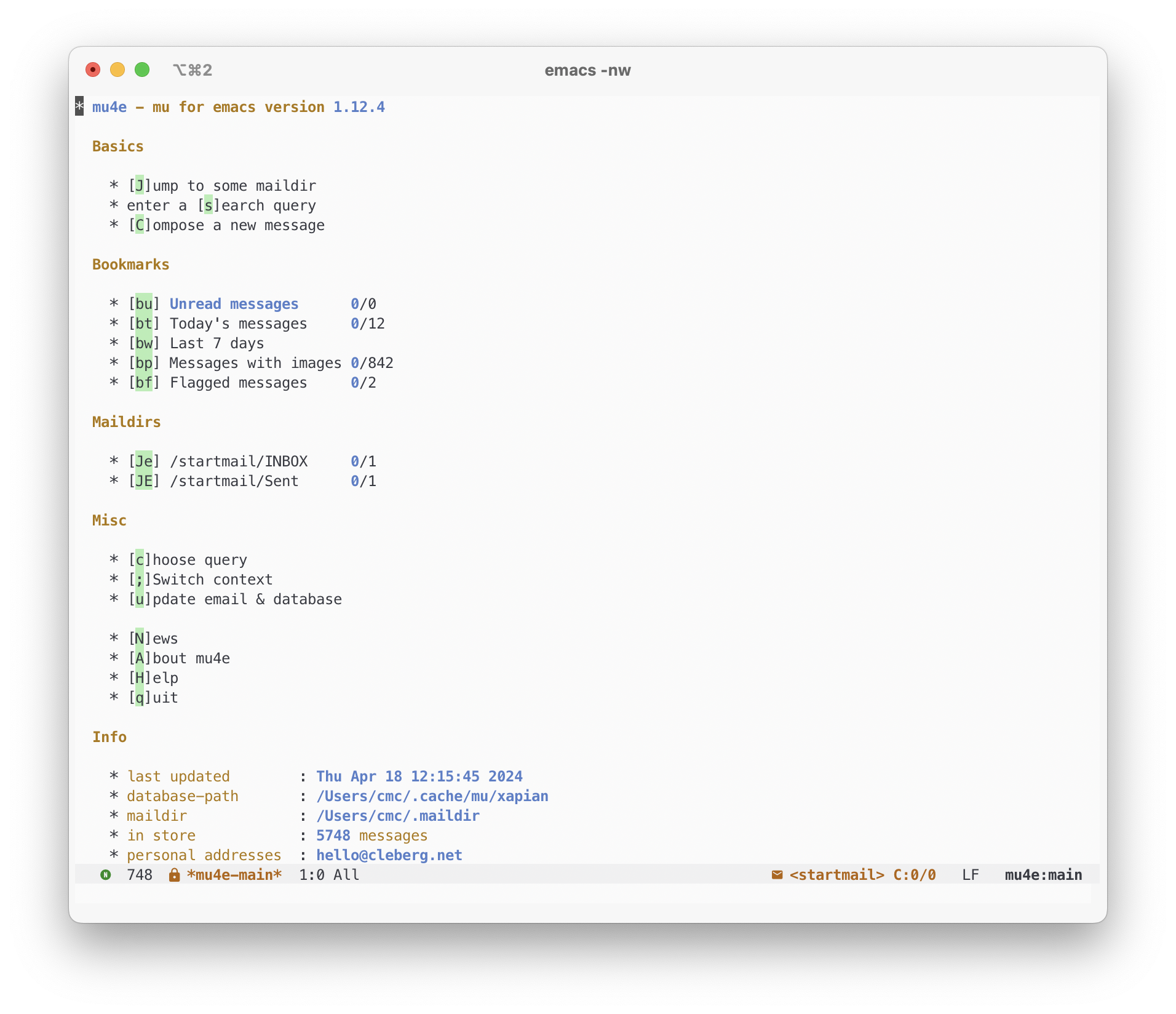 - |