
diff options
Diffstat (limited to 'blog/2021-04-17-gemini-server.org')
| -rw-r--r-- | blog/2021-04-17-gemini-server.org | 234 |
1 files changed, 128 insertions, 106 deletions
diff --git a/blog/2021-04-17-gemini-server.org b/blog/2021-04-17-gemini-server.org index b6a7794..6494c9c 100644 --- a/blog/2021-04-17-gemini-server.org +++ b/blog/2021-04-17-gemini-server.org @@ -1,159 +1,181 @@ -+++ -date = 2021-04-17 -title = "Hosting a Gemini Server" -description = "Dive deeper into Gemini by hosting your own Gemini web server." -draft = false -+++ - -## Similar Article Available - -To read more about Gemini and ways to test out this new protocol without your -own server, see my previous post -[Launching a Gemini Capsule](/blog/launching-a-gemini-capsule/). - -## Preparation - -This guide assumes you have access to a server accessible to the world through a -public IP address and that you own a domain name used for this Gemini capsule. - -## Getting Started with Agate - -We are going to use [Agate](https://github.com/mbrubeck/agate) for this -tutorial. -This is a basic Gemini server written in Rust. -It takes very little time and maintenance to get it running. - -## Install Dependencies - -First, you will need to install the Rust package for your system. On Ubuntu, use -the following commands (remember to use `sudo` if you are not the root user). -The Rust installation will give you options to customize the installation; I -used the default installation options. - -```sh +#+title: Hosting a Gemini Server +#+date: 2021-04-17 + +** Similar Article Available +:PROPERTIES: +:CUSTOM_ID: similar-article-available +:END: +To read more about Gemini and ways to test out this new protocol without +your own server, see my previous post +[[/blog/launching-a-gemini-capsule/][Launching a Gemini Capsule]]. + +** Preparation +:PROPERTIES: +:CUSTOM_ID: preparation +:END: +This guide assumes you have access to a server accessible to the world +through a public IP address and that you own a domain name used for this +Gemini capsule. + +** Getting Started with Agate +:PROPERTIES: +:CUSTOM_ID: getting-started-with-agate +:END: +We are going to use [[https://github.com/mbrubeck/agate][Agate]] for +this tutorial. This is a basic Gemini server written in Rust. It takes +very little time and maintenance to get it running. + +** Install Dependencies +:PROPERTIES: +:CUSTOM_ID: install-dependencies +:END: +First, you will need to install the Rust package for your system. On +Ubuntu, use the following commands (remember to use =sudo= if you are +not the root user). The Rust installation will give you options to +customize the installation; I used the default installation options. + +#+begin_src sh sudo apt update && sudo apt upgrade -y curl https://sh.rustup.rs -sSf | sh -``` +#+end_src Remember to configure your shell with the new configuration: -```sh +#+begin_src sh source $HOME/.cargo/env -``` +#+end_src -Before we install agate, make sure you have the `gcc` package installed: +Before we install agate, make sure you have the =gcc= package installed: -```sh +#+begin_src sh sudo apt install gcc -``` +#+end_src -Next, you'll need to install the agate executable with Rust's Cargo package -maintainer: +Next, you'll need to install the agate executable with Rust's Cargo +package maintainer: -```sh +#+begin_src sh cargo install agate -``` - -## Create Symlinks +#+end_src -Once Cargo has finished installing all the required packages, symlink the -executable to your \$PATH. +** Create Symlinks +:PROPERTIES: +:CUSTOM_ID: create-symlinks +:END: +Once Cargo has finished installing all the required packages, symlink +the executable to your $PATH. -```sh +#+begin_src sh sudo ln -s $HOME/.cargo/bin/agate /usr/local/bin/agate -``` +#+end_src -## Using Agate's Built-In Installation Tool +** Using Agate's Built-In Installation Tool +:PROPERTIES: +:CUSTOM_ID: using-agates-built-in-installation-tool +:END: +If you're running Ubuntu or Debian, use the Debian installation script +found in Agate's GitHub repository, under the =tools/debian= folder. -If you're running Ubuntu or Debian, use the Debian installation script found in -Agate's GitHub repository, under the `tools/debian` folder. - -```sh +#+begin_src sh git clone https://github.com/mbrubeck/agate cd agate/tools/debian sudo ./install.sh -``` - -## Configure the Gemini Service - -We have a little more to do, but since this script tries to immediately run the -service, it will likely fail with an exit code. Let's add our finishing touches. -Edit the following file and replace the hostname with your desired URL. You can -also change the directory where content will be served. - -```sh +#+end_src + +** Configure the Gemini Service +:PROPERTIES: +:CUSTOM_ID: configure-the-gemini-service +:END: +We have a little more to do, but since this script tries to immediately +run the service, it will likely fail with an exit code. Let's add our +finishing touches. Edit the following file and replace the hostname with +your desired URL. You can also change the directory where content will +be served. + +#+begin_src sh sudo nano /etc/systemd/system/gemini.service -``` +#+end_src -```sh +#+begin_src sh # Edit these lines to whatever you want - see the next code block for my personal configuration. WorkingDirectory=/srv/gemini ExecStart=agate --hostname $(uname -n) --lang en -``` +#+end_src This is my personal config: -```sh +#+begin_src sh WorkingDirectory=/var/gemini/ ExecStart=agate --hostname gemini.example.com --lang en -``` +#+end_src -Since we've altered the systemd configuration files, we have to reload the -daemon. Let's do that, restart our service, and check its status. +Since we've altered the systemd configuration files, we have to reload +the daemon. Let's do that, restart our service, and check its status. -```sh +#+begin_src sh sudo systemctl daemon-reload sudo systemctl restart gemini.service sudo systemctl status gemini.service -``` - -## Fixing Systemd Errors +#+end_src -If you're still getting errors, the installation process may not have properly -enabled the gemini service. Fix it with the following commands. +** Fixing Systemd Errors +:PROPERTIES: +:CUSTOM_ID: fixing-systemd-errors +:END: +If you're still getting errors, the installation process may not have +properly enabled the gemini service. Fix it with the following commands. -```sh +#+begin_src sh sudo systemctl enable gemini.service sudo systemctl restart gemini.service sudo systemctl status gemini.service -``` +#+end_src -## Firewall Rules +** Firewall Rules +:PROPERTIES: +:CUSTOM_ID: firewall-rules +:END: +Great! Our server is now functional and running. The first consideration +now is that you need to be able to access port 1965 on the server. If +you have a firewall enabled, you'll need to open that port up. -Great! Our server is now functional and running. The first consideration now is -that you need to be able to access port 1965 on the server. If you have a -firewall enabled, you'll need to open that port up. - -```sh +#+begin_src sh sudo ufw allow 1965 sudo ufw reload -``` - -## Creating Content - -Let's create the Gemini capsule. Note that wherever you set the WorkingDirectory -variable to earlier, Agate will expect you to put your Gemini capsule contents -in a sub-folder called "content." So, I place my files in "/var/gmi/content." I'm -going to create that folder now and put a file in there. - -```sh +#+end_src + +** Creating Content +:PROPERTIES: +:CUSTOM_ID: creating-content +:END: +Let's create the Gemini capsule. Note that wherever you set the +WorkingDirectory variable to earlier, Agate will expect you to put your +Gemini capsule contents in a sub-folder called "content." So, I place my +files in "/var/gmi/content." I'm going to create that folder now and put +a file in there. + +#+begin_src sh sudo mkdir /var/gemini/content sudo nano /var/gemini/content/index.gmi -``` - -You can put whatever you want in the "index.gmi" file, just make sure it's valid -Gemtext. +#+end_src -## The Results +You can put whatever you want in the "index.gmi" file, just make sure +it's valid Gemtext. +** The Results +:PROPERTIES: +:CUSTOM_ID: the-results +:END: Here are some screenshots of the Gemini page I just created in the -[Lagrange](https://gmi.skyjake.fi/lagrange/) browser and the -[amfora](https://github.com/makeworld-the-better-one/amfora) browser. +[[https://gmi.skyjake.fi/lagrange/][Lagrange]] browser and the +[[https://github.com/makeworld-the-better-one/amfora][amfora]] browser. -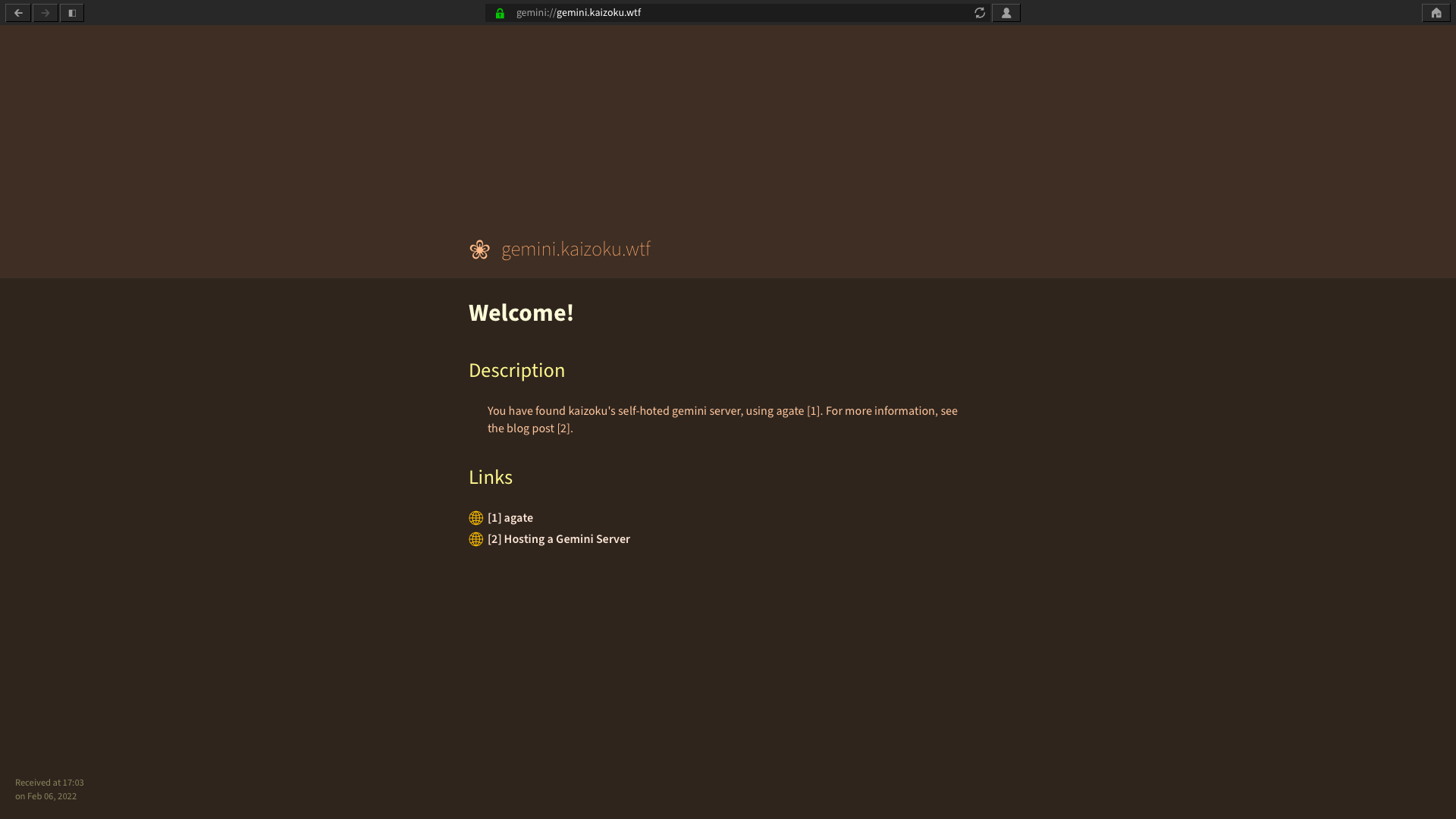 +#+caption: GUI Gemini browser +[[https://img.cleberg.net/blog/20210417-hosting-a-gemini-server/lagrange.png]] -_Lagrange_ +/Lagrange/ -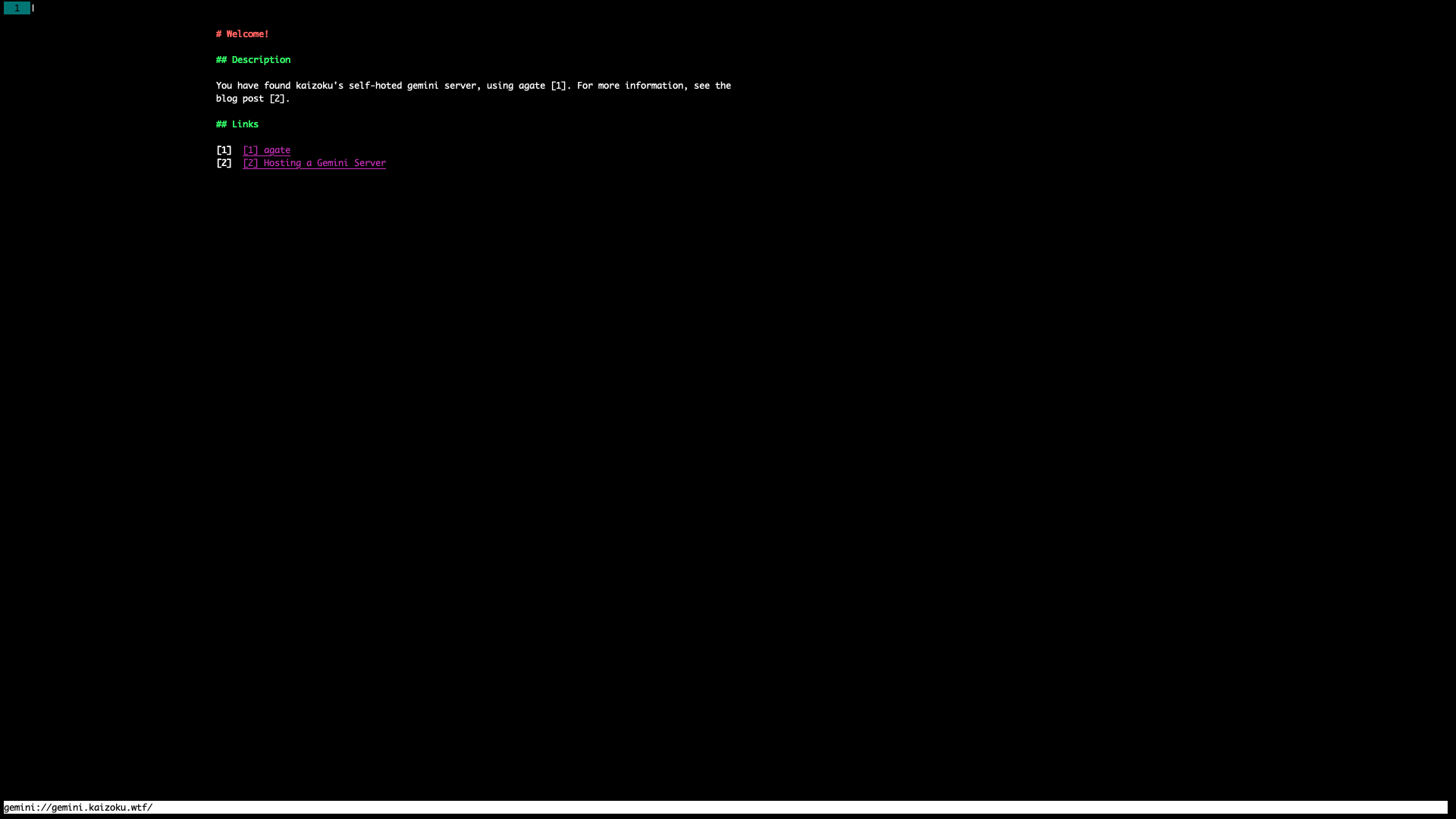 +#+caption: CLI Gemini browser +[[https://img.cleberg.net/blog/20210417-hosting-a-gemini-server/amfora.png]] -_Amfora_ +/Amfora/ |